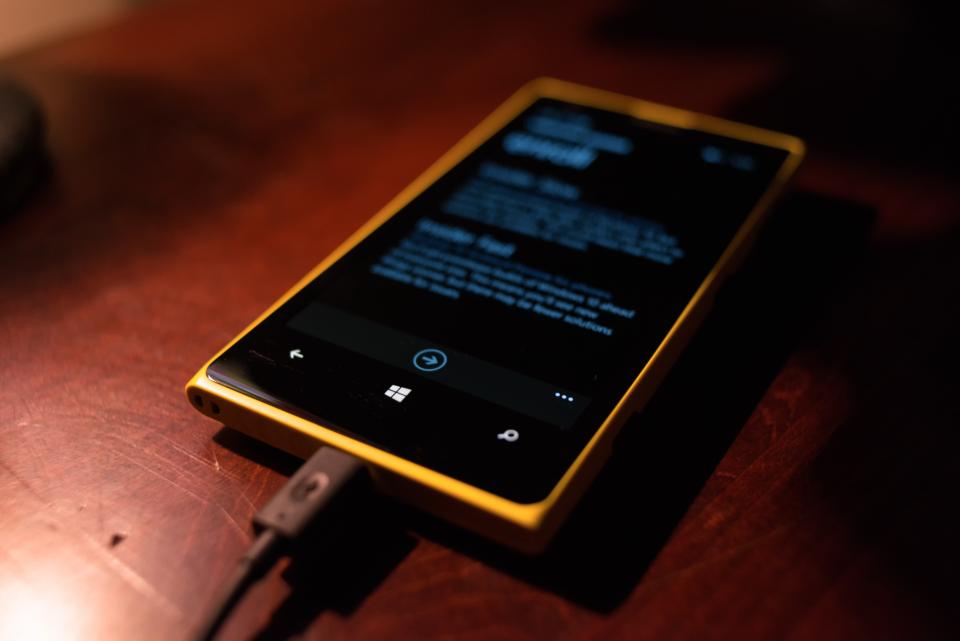
Your phone now holds almost all of our digital memories: photos of the kids, important messages, contacts gathered over many years. And yet many people only think about backing up after they’ve already dropped their phone in water.
Backing up isn’t a complicated task reserved for the tech-savvy. Set it up correctly just once, and the phone takes care of the rest. This article shows you what to back up and how to keep it simple.
What’s most worth backing up
Not everything on your phone is equally important. Apps can be redownloaded, but photos and videos, once lost, are gone for good. So prioritize three groups: photos and videos, contacts, and the messages and chat history of the apps you use most.
Also, don’t forget the data that gets little attention but is hard to recover, such as personal notes, reminders, and two-factor codes in your security app. Losing your authenticator app can lock you out of your very own accounts.
Automatic backup to the cloud
The most effortless way is to turn on automatic backup to the cloud service that comes with your phone. The device will quietly push your photos, contacts and settings online whenever you’re connected to Wi-Fi and plugged in to charge, usually at night. You hardly have to do anything.
You should go into your account settings to check whether backup is turned on, and when the last backup was. Many people assume the phone is backing up automatically, when in fact the feature was turned off long ago because the free storage ran out.
Keep an extra copy on your computer
The cloud is very convenient but shouldn’t be the only place. Every so often you should copy important photos and videos over to a computer or an external drive. Just plug in the cable, open the phone’s folder and drag the photos over, and you have an independent backup right away.
This approach is especially useful for long videos and a whole year’s worth of photos, the things that take up a lot of space and often get left behind if you rely only on a free online storage plan.
Switch to a new phone without losing data
When you change phones, the backup is the bridge. On the first startup, the new phone will ask whether you want to restore from your old backup. Choose the right account, wait a while, and your photos, contacts and screen layout come back almost intact.
If you’re moving between two different operating systems, the process may need an extra transfer app to help. Do this when both phones are fully charged and near a power outlet, because transferring large amounts of data can take quite a while.
Check that your backup actually works
A backup is only valuable if it can be restored. Every so often you should open your cloud photo library from another device to make sure the photos are still there and can be opened and viewed, rather than just seeing a loading icon that spins forever.
The habit of checking regularly, say once every few months, helps you catch early when something has gone wrong. The worst thing is only discovering, at the moment you need to restore, that the backup is corrupted or missing an important part.
Turn backing up into a regular habit
Backing up once and then forgetting doesn’t help much, because the most precious data is usually the newest: the photo taken last week, the message from yesterday. What matters is keeping backups happening regularly rather than just once for show.
The most effortless way is to let automatic mode handle most of it, then occasionally copy the important things onto an external drive by hand. You can also set a monthly reminder to do a quick check, turning backup into a quiet routine rather than something you have to remember.
Backing up is the kind of task you’ll thank yourself for on an unexpected day. Take ten minutes today to turn on automatic backup and try copying a few photos to your computer. The peace of mind it brings is worth far more than the effort it takes.